How to Easily Change Your Globe At Home WiFi Password
If you use Globe At Home WiFi, it is important to change your WiFi password from time to time. Updating your password helps protect your internet connection and prevents unauthorized users from accessing your network. If too many people connect to your WiFi, your internet speed may also slow.
Changing your Globe WiFi password is actually simple. You only need to access your router settings and update the password from the WiFi configuration page. In this guide, you will learn the step-by-step method to change your Globe At Home WiFi password, along with helpful tips and solutions to common problems.
If you are using a prepaid Home WiFi router, ensure your internet connection stays active by completing your verification on the main Globe SIM registration portal.
Why You Should Change Your Globe At Home WiFi Password
Changing your WiFi password regularly can help keep your network secure and improve your internet experience. Here are some important reasons to update your password.
Protect your network from unauthorized users
If someone knows your password, they can connect to your WiFi without permission. Changing the password helps block unknown users.
Improve internet speed
When too many devices connect to your WiFi, your internet speed may slow down. Updating the password can disconnect unwanted users and improve performance.
Increase home network security
A strong WiFi password helps prevent hackers or strangers from accessing your network.
Prevent neighbors from using your internet
Sometimes, neighbors may guess or learn your password. Changing it ensures only your household can use the connection.
Things You Need Before Changing the WiFi Password
Before you start changing your Globe WiFi password, make sure you have the following:
- Globe At Home modem or router installed in your home
- A connected device such as a phone, laptop, or computer
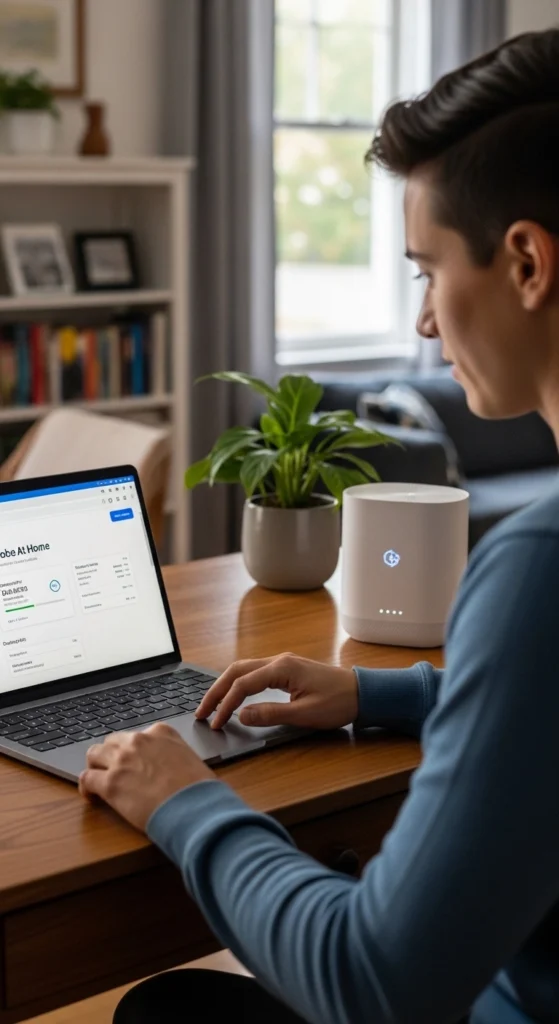
- Router admin username and password (usually printed on the modem sticker)
- A stable internet connection
Having these ready will make the process easier and faster. Securing your home network from unwanted guests is also a great time to explore upgraded Globe plans if your household needs a higher bandwidth allowance.
Globe At Home Default Username and Password
Before you can change your WiFi password, you need to log in to your Globe At Home router. Every router has a login page where you can manage your WiFi network, including the name (SSID), password, and security settings.
Here are the most common default login details:
- Router IP Address: 192.168.254.254
- Username: user or admin
- Password: admin, @l03e1t3, or tattoo@home
Tip: The default login details may vary depending on the router model.
Where to find your login info:
Check the sticker at the back or bottom of your Globe modem. This sticker usually shows:
- The default WiFi name (SSID)
- The default WiFi password
- The default router username and password
Tips for Creating a Strong WiFi Password
A strong password helps protect your internet connection from unauthorized access.
Here are some helpful tips:
- Use at least 8 to 12 characters.
- Combine uppercase letters, lowercase letters, numbers, and symbols.
- Avoid simple passwords like 12345678 or password.
- Do not use personal information such as your name or birthdate.
- Change your password regularly for better security.
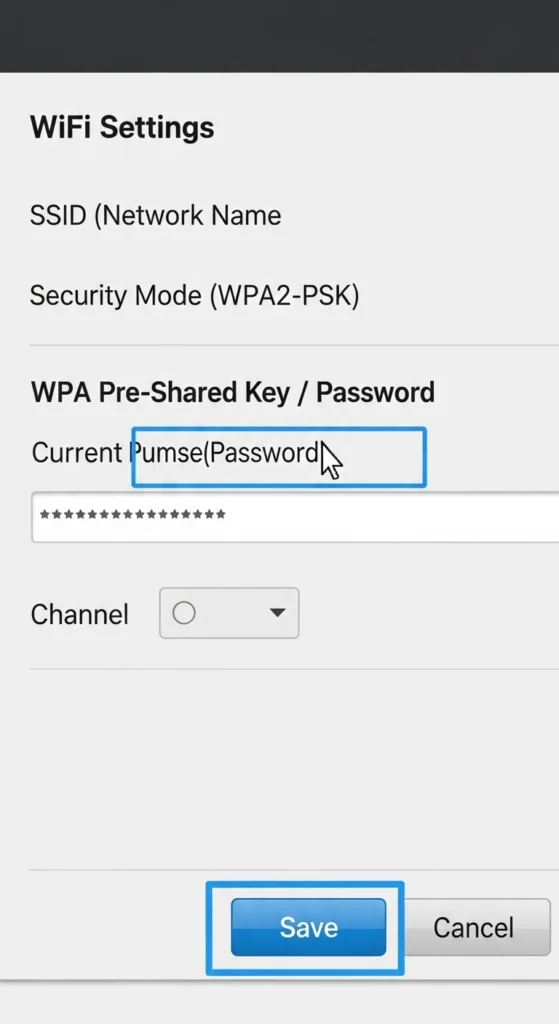
How to Change Globe At Home WiFi Password (Step-by-Step)
Globe offers several ways to share data depending on your SIM type, promo, or device. Here are the main methods:
Connect to Your Globe WiFi
First, connect your device to the Globe WiFi network. You can use a smartphone, laptop, or desktop computer. Make sure your device is connected to the router before proceeding to the next step.
Open the Router Login Page
Open a web browser such as Chrome, Edge, or Safari. In the address bar, type the router IP address:
- 192.168.254.254
Press Enter to open the router login page.
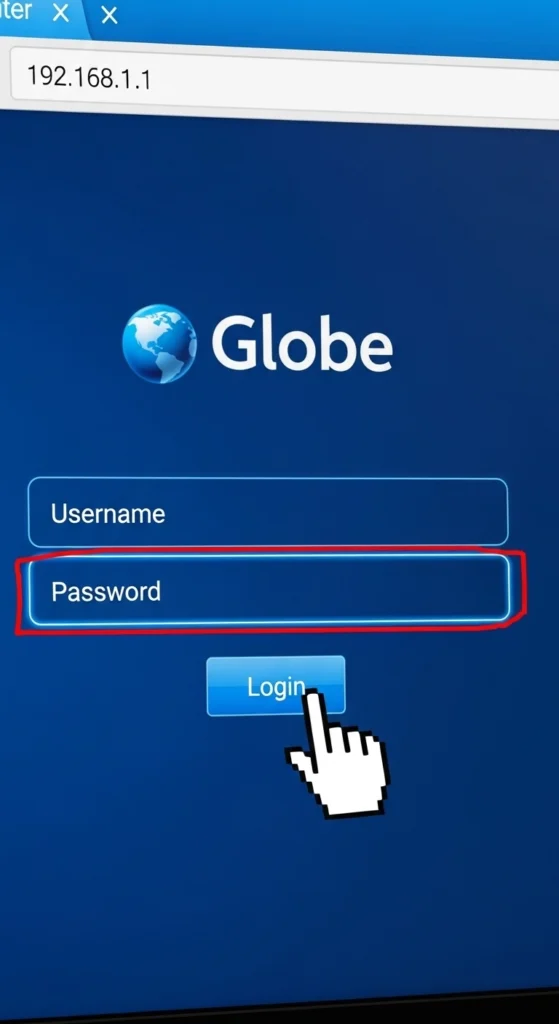
Log in to the Router Dashboard
Once the login page appears, enter the router username and password. These login details are usually printed on the modem sticker. After entering the credentials, click Login to access the router dashboard.
Go to WiFi Settings
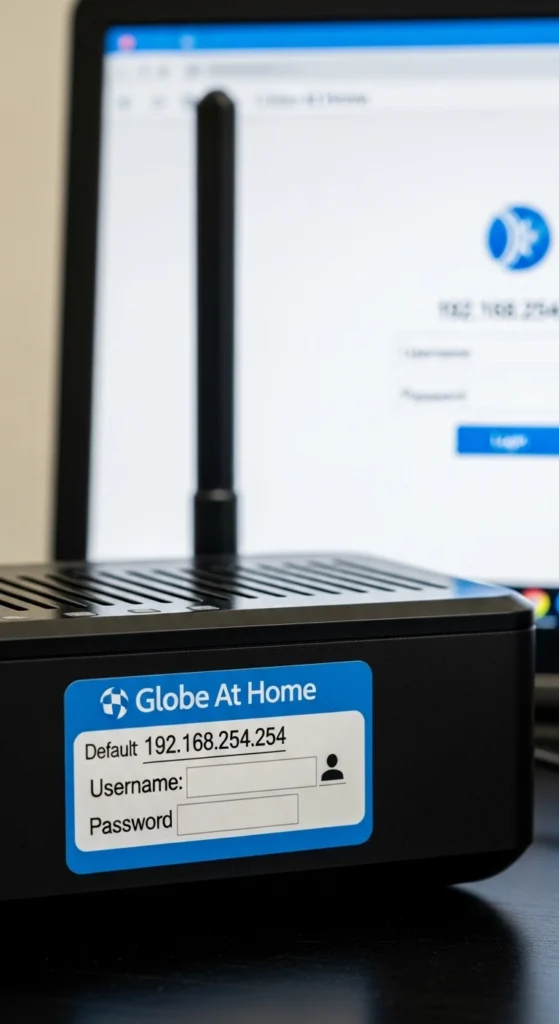
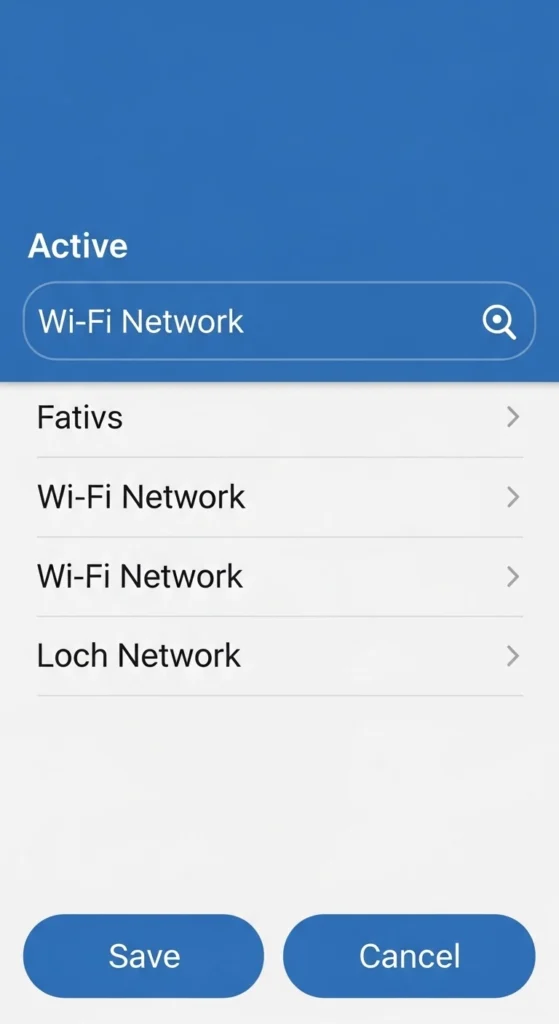
After logging in, find the section that manages wireless network settings.
Look for options such as:
- Network
- WLAN Settings
- WiFi Settings
Click the appropriate option to open the WiFi configuration page.
Change the WiFi Password
In the WiFi settings page, locate the field called:
WPA Pre-Shared Key or Passphrase
This is where your WiFi password is stored. Delete the old password and enter your new WiFi password.
Save the Settings
After entering the new password, click Apply or Save to confirm the changes. Your router may take a few seconds to update the settings.
Reconnect All Devices
After the password is changed, your WiFi will temporarily disconnect. You will need to reconnect all devices, such as phones, laptops, tablets, and smart TVs, using the new WiFi password.
How to Change Globe WiFi Name (SSID)
Besides changing your WiFi password, you can also change your WiFi network name, also called the SSID. This makes it easier to identify your network, especially if there are many WiFi networks nearby.
Follow these simple steps:
- Log in to the router dashboard
- Open a browser and go to 192.168.254.254
- Enter your router username and password to access the dashboard
- Go to WiFi Settings
- Look for WLAN Settings or Wireless / WiFi Settings in the menu
- This is where you can manage your WiFi name and password
- Find the SSID field
- The SSID is your WiFi network name
- It may show your current WiFi name
- Enter your new WiFi name
- Type a name that is easy to recognize
- Avoid using personal information like your full name or address
- Save or Apply the changes
- Click Save or Apply to update the network name
- Your WiFi may briefly disconnect, and devices will need to reconnect using the new network name
Additional Tips:
- Use a simple but unique name so you can easily identify your network
- Avoid special characters that may not be supported by some devices
- Changing the SSID does not affect your WiFi password unless you change it separately
If your mobile data feels sluggish when disconnected from your newly secured WiFi, try configuring a fast APN for Globe to boost your internet speed.
Common Problems When Changing Globe WiFi Password
Cannot Access 192.168.254.254
- Make sure your device is connected to the Globe WiFi network.
- Check that the IP address is typed correctly: 192.168.254.254.
- Restart your router and try again.
Incorrect Username or Password
- Check the modem sticker for the correct login details.
- Make sure there are no typing mistakes.
- Try other common default login combinations:
- Username: user/admin
- Password: admin / @l03e1t3 / tattoo@home
WiFi Not Working After Changing Password
- Forget the WiFi network on your device.
- Reconnect using the new password.
- Ensure all devices are updated with the latest WiFi settings
How Often Should You Change Your WiFi Password
Changing your WiFi password regularly is a good security practice.
You should update your password:
- Every 3 to 6 months
- When your internet becomes slow due to many connected devices
- If unknown devices appear on your network
- After sharing the password with many people
Regular updates help keep your internet secure.
If you accidentally lock yourself out of the router dashboard while updating your credentials, do not hesitate to reach out to Globe customer service for an admin reset.
What is Globe At Home WiFi?
Globe At Home WiFi is a home internet service provided by Globe Telecom in the Philippines. It allows users to connect multiple devices, such as smartphones, laptops, smart TVs, and tablets, to the internet using a wireless router.
Globe offers different types of home internet services, including:
- Globe At Home Fiber: A fiber-optic connection that provides fast and stable internet speeds.
- Globe At Home LTE: A wireless broadband connection that uses LTE mobile networks.
- Globe Prepaid WiFi: A prepaid internet service where users load promos instead of paying a monthly bill.
How to Reset Globe At Home Router
If you forget your router login password or cannot access the router dashboard, you can reset your Globe At Home router to restore it to factory settings. Resetting will remove all custom settings, including your WiFi name and password, so you’ll need to set them up again.
Follow these steps:
- Locate the Reset button at the back or bottom of your router.
- Use a pin or paperclip to press and hold the Reset button.
- Hold the button for 10 to15 seconds until the router lights blink or restart.
- Wait for the router to fully restart (this may take 1–2 minutes).
- After resetting, the router will return to factory default settings, including the default username, password, and WiFi name.
- Log in using the default credentials printed on the sticker of your modem.
- Set a new WiFi name (SSID) and password to secure your network.
Tips:
- Only reset the router if you cannot log in or forgot the login details.
- Make a note of your new WiFi name and password to avoid repeating this process.
- After resetting, all connected devices will be disconnected. You will need to reconnect all devices using the new settings.
If you are using alternative SIM cards as a backup for your home network, you might be wondering is GOMO under Globe for seamless connectivity.
Conclusion
Changing your Globe At Home WiFi password is a simple but important step to protect your internet connection. By accessing the router dashboard and updating your WiFi settings, you can prevent unauthorized users from connecting to your network.
It is also a good idea to create a strong password and update it regularly to maintain better security. With the steps explained in this guide, you can easily manage your Globe WiFi network and keep your home internet safe and reliable.
Frequently Asked Questions
What is the default Globe At Home WiFi password?
The default WiFi password is usually printed on the label at the back of the Globe router. Each modem may have a different password.
Can I change my Globe WiFi password using my phone?
Yes. You can change the password using your phone by connecting to the WiFi and opening the router login page in your browser.
Why can’t I access the Globe router login page?
This may happen if your device is not connected to the router or if the IP address is entered incorrectly. Restarting the router can also fix the issue.
Will changing the WiFi password disconnect devices?
Yes. When you update the password, all connected devices will disconnect and must reconnect using the new password.
How do I find my Globe router username and password?
The router username and password are usually printed on a sticker attached to the modem.